From paper registers to Schoolog in a week
A practical plan for moving a school's pupils, staff and classes into Schoolog without stopping the term, from the spreadsheet you already have.
· 2 min read · Emmanuel Okosisi
The hardest part of any new system is the first week. Here is the plan we give schools moving to Schoolog, from what they already have.
Day 1: Start your school
The proprietor starts the school on Schoolog. It takes about ten minutes: the school's name, type and state, the curriculum and classes, and the proprietor's own account. Schoolog makes the session, its three terms and every class for you.
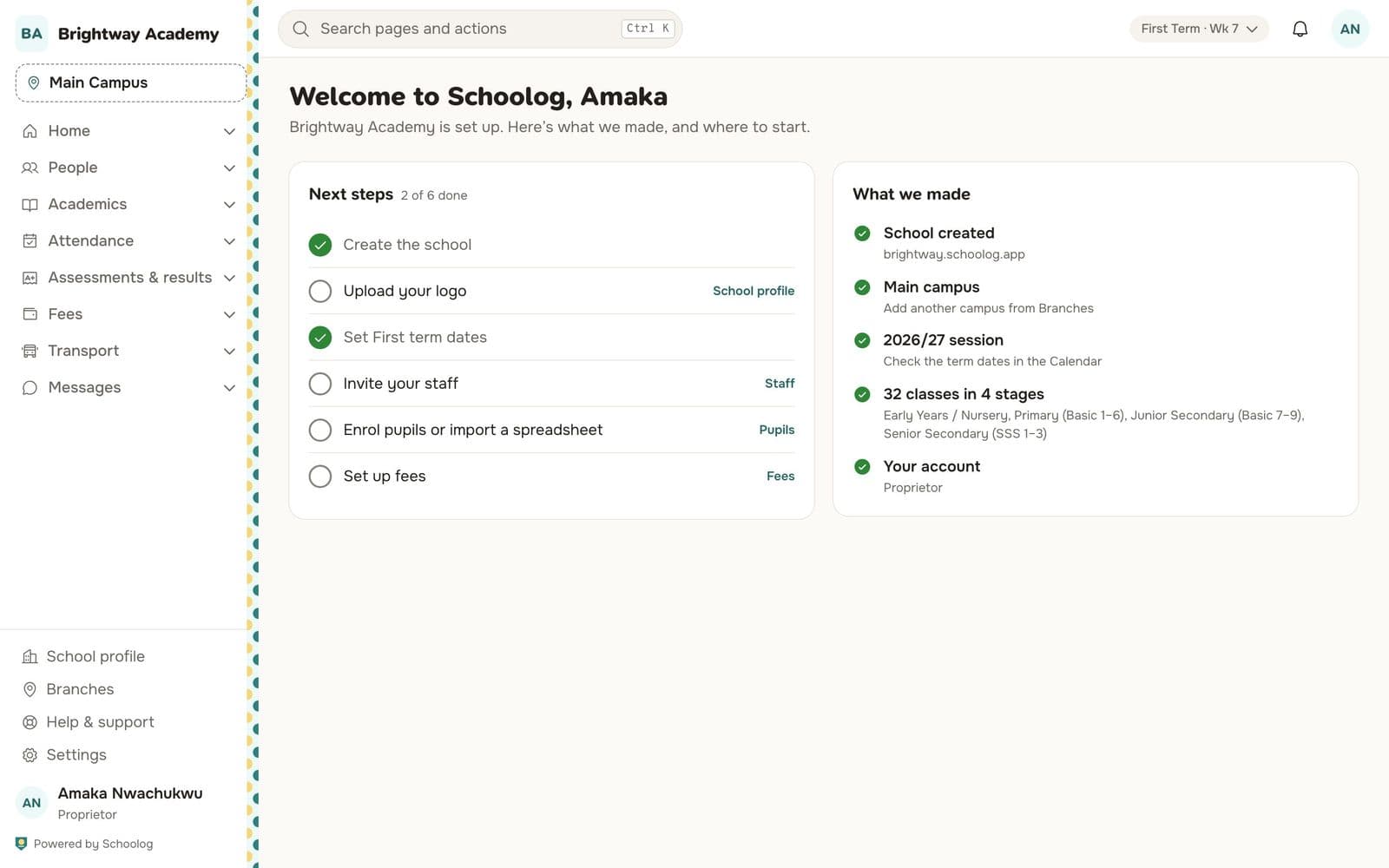
You land on a welcome page with your next steps. Do them in order.
Day 2: Set the terms and the school day
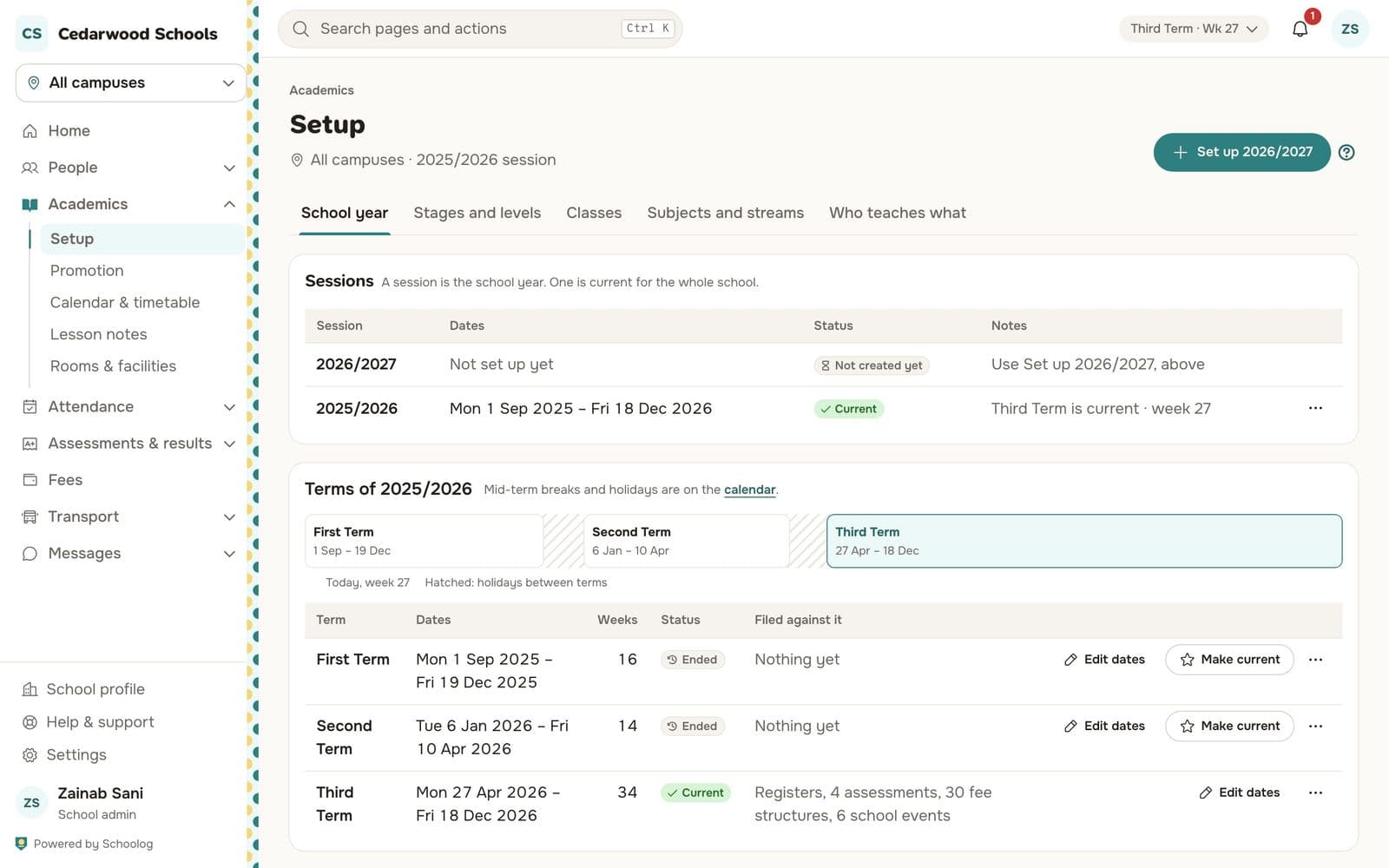
Open Academics, Setup and check the term dates. Add mid-term breaks and holidays to the calendar. Then set the school day for each campus: when school starts, the periods, and when pupils go home. Registers and the timetable use these times.
Day 3: Bring in your pupils and their guardians
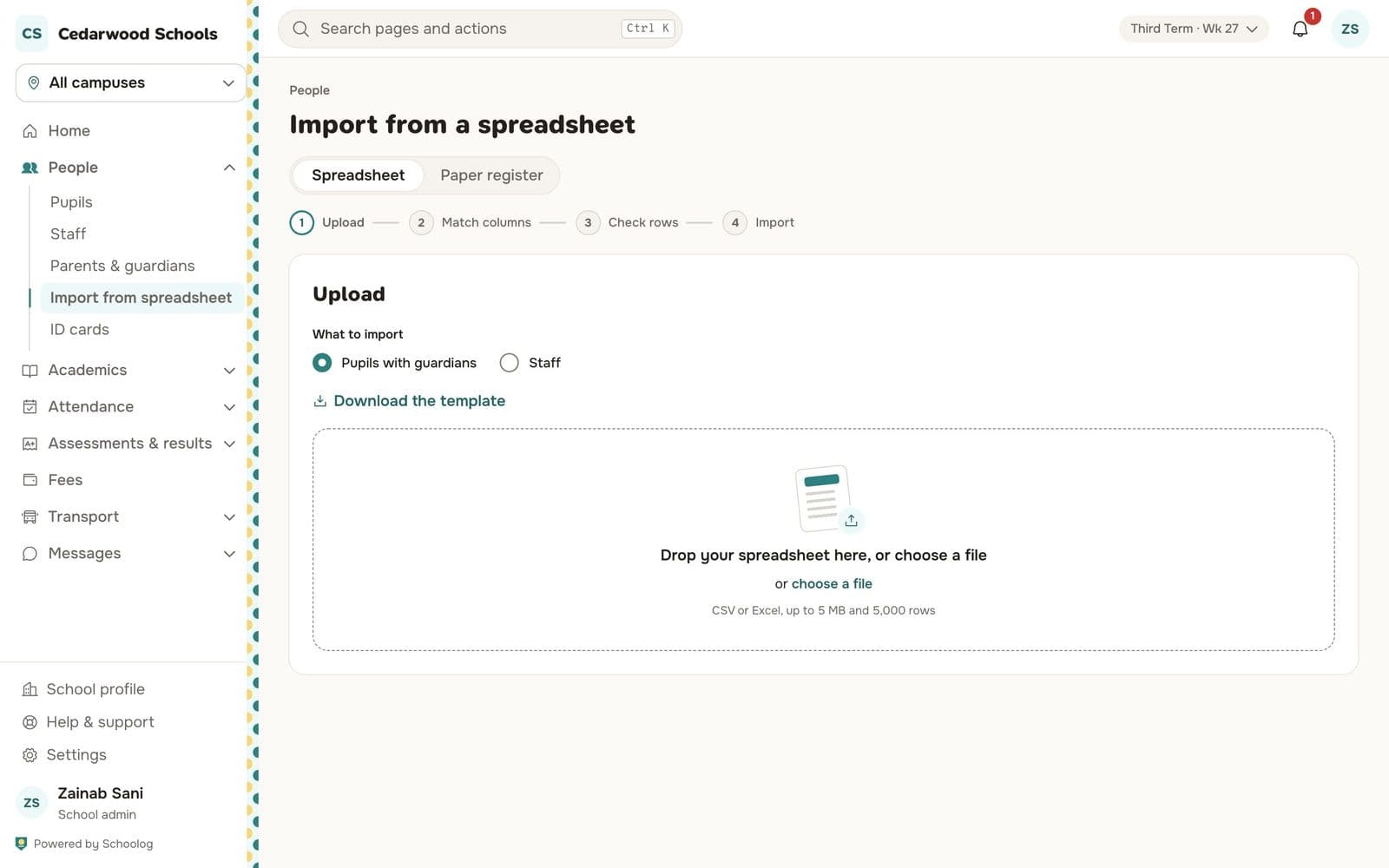
Most schools already have a list of pupils in Excel. Download Schoolog's template, copy your columns in (or upload your own file and match its columns), and Schoolog checks every row before anything is saved.
The check shows which rows are ready, which have a problem and what the problem is: a missing class, a phone number in the wrong format, two pupils with the same admission number. Fix them in the file or on the page, then import. Each pupil's guardians are linked to them, and each pupil gets a sign-in.
If your registers are only on paper, the Paper register tab lets the office type a class in quickly, one row per pupil.
Day 4: Invite your staff
Add teachers, the bursar and the office staff from People, Staff. Each one gets an invite by email or WhatsApp, and sets their own password. Then say who teaches what: the form teacher for each class and the teacher for each subject. That decides what each teacher sees.
Day 5: Set up fees
The bursar enters the fee structure for each level and raises the term's invoices. Families see what they owe in the app the same day.
The week after
Teachers take the register from Monday. Parents get their invite by email or WhatsApp, set a password and see their children straight away. By the end of the second week, most schools stop keeping the paper copy.
If you get stuck at any step, press Help & support in the app and tell us. A real person answers.