Your school's name, crest and words on every screen
Families should feel they are using their school's app, not ours. How branding, vocabulary, ID cards and your public page make Schoolog yours.
· 1 min read · Emmanuel Okosisi
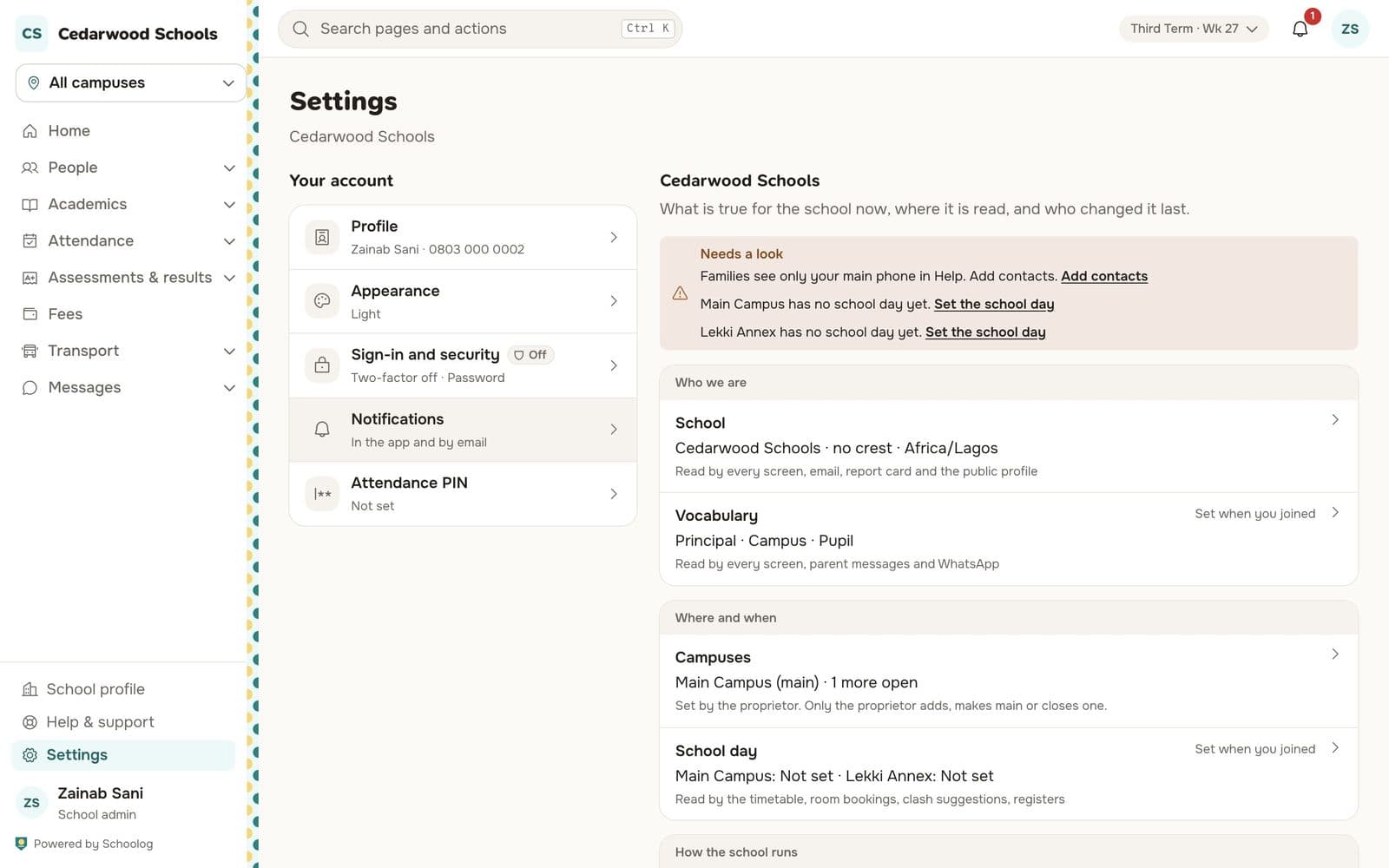
When a parent opens Schoolog, the first thing they see is your school's name and crest. That is on purpose. The app is your school's; we are only the people who keep it running.
Your crest and colours
Upload the school's crest in Settings, School. It appears in the corner of every screen, on every email, report card, receipt and ID card. Report cards and receipts also use the school's address and phone number.
Your own words
Schools do not all use the same words. Is the head of the school the Principal, the Head Teacher or the Rector? Are your sites campuses or branches? Are the children pupils or students? In Settings, Vocabulary, you choose, and every screen, message and card uses your words.
ID cards
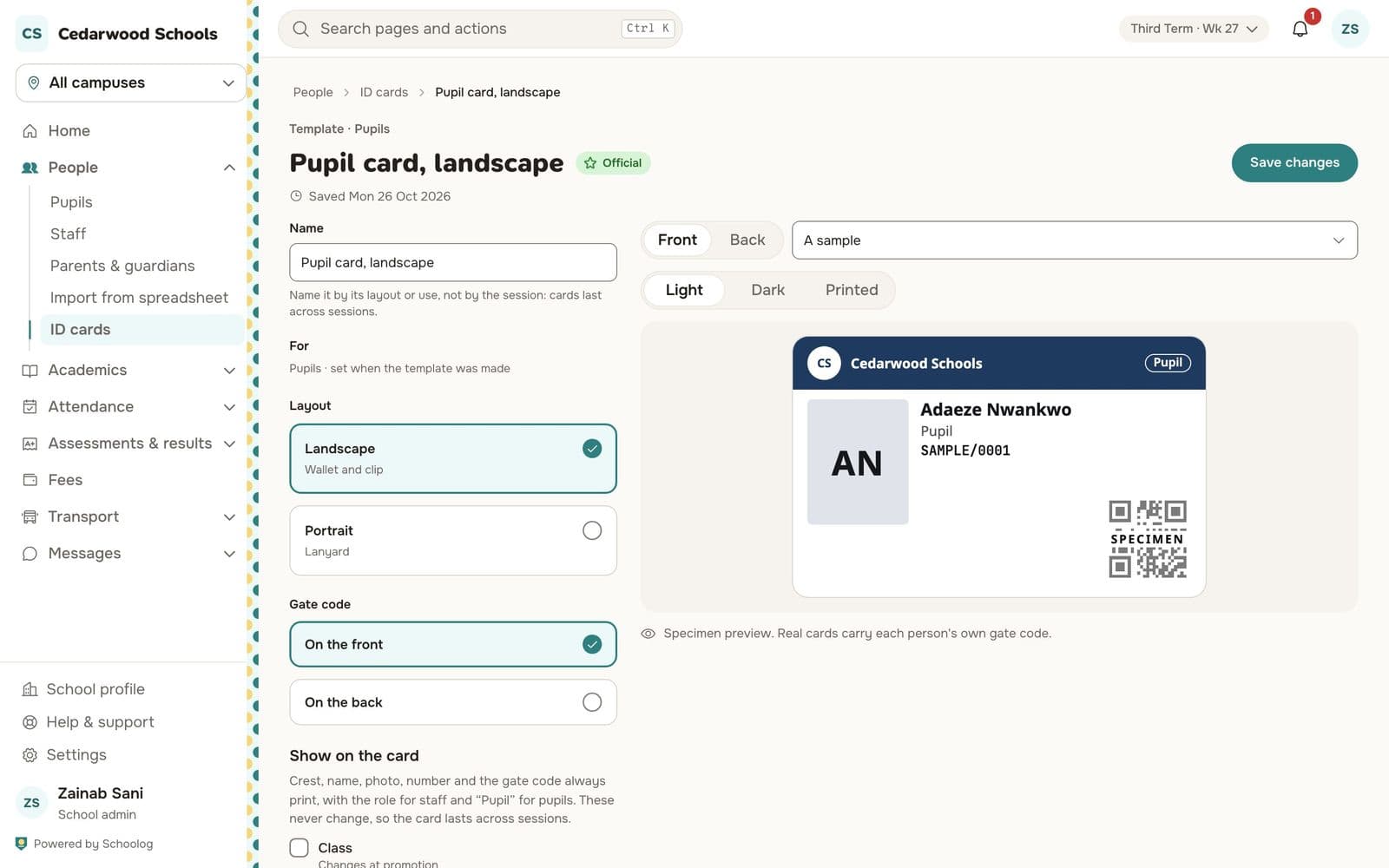
Design the school's ID card once: landscape or portrait, the crest, photo, name, class and admission number, and the gate code on the front or back. Then make cards for new pupils, for anyone whose card was lost or is out of date, or for everyone at the start of the session.
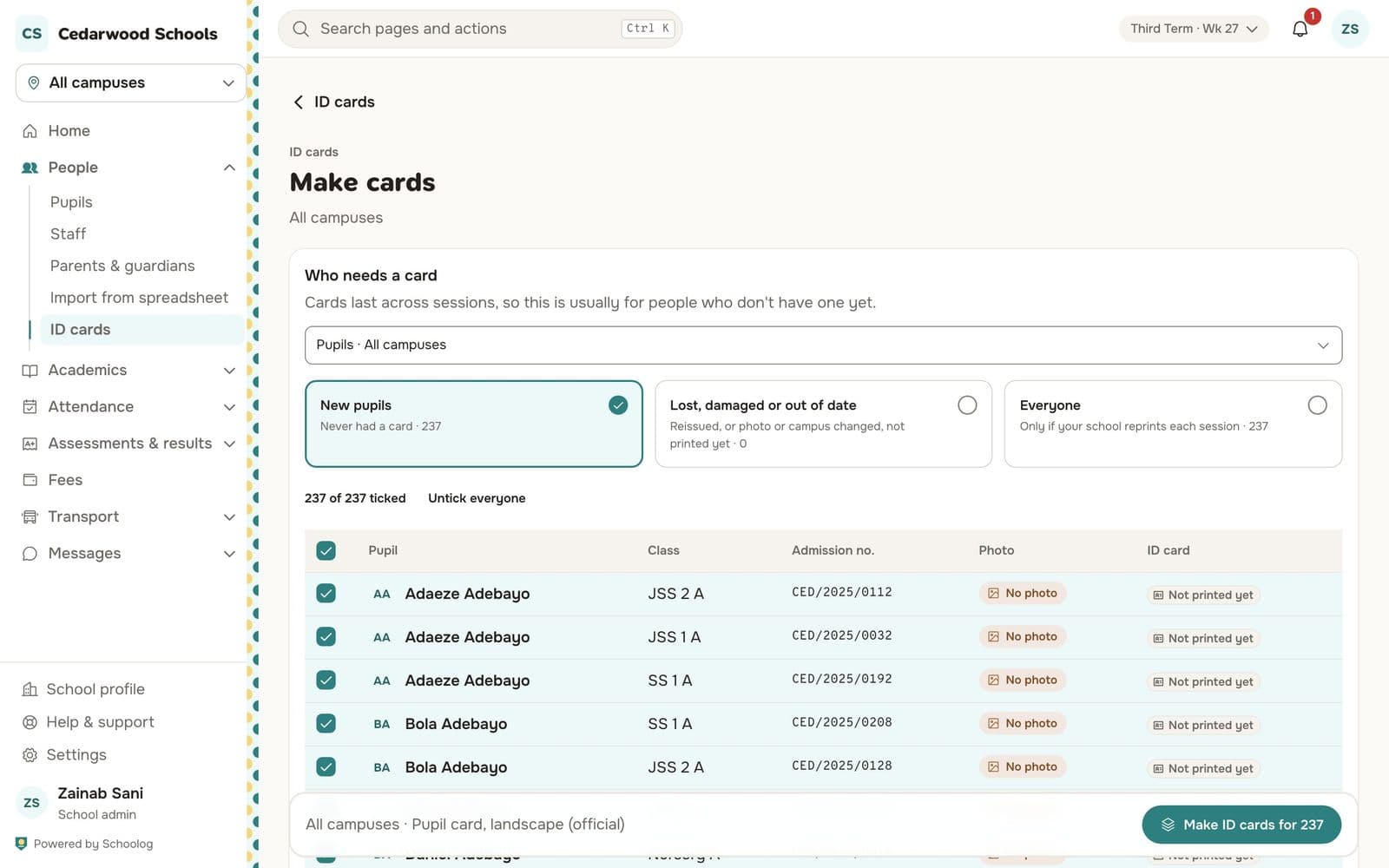
The gate code on each card is what the gate station scans. If a card is lost, the school stops it and prints a new version, and the gate refuses the old one with the reason.
A page families can find
Each school can publish a public page with its photos, the stages it teaches, its address and how to contact the admissions office. Schools that choose to be listed appear on Discover, where families search for schools by state and stage.
Read School settings and vocabulary and Make ID cards to set it up.