Make ID cards
Design the school's card, print a batch, and stop a lost card.
Updated
Go to People, ID cards.
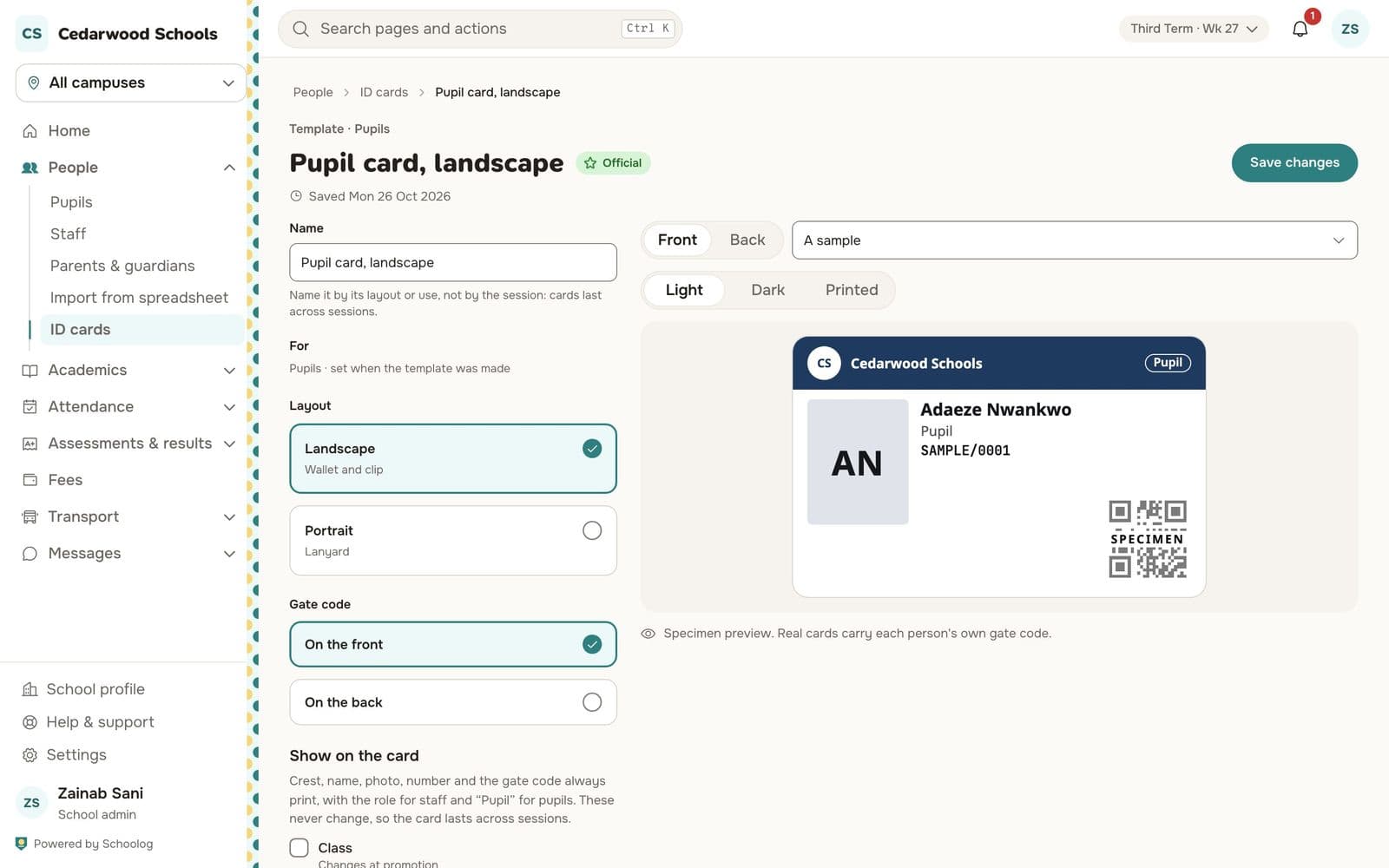
Design a template
Open a template, or make one.
- Choose Landscape (wallet and clip) or Portrait (lanyard).
- Choose where the gate code goes: on the front or the back.
- Choose what the card shows: crest, name, photo, number, class.
- Preview it in light, dark or printed form.
- Make it official. One template per audience (pupils, staff) is official at a time.
Make cards
- Press Make cards.
- Choose who: pupils or staff, and the campus.
- Choose New pupils (never had a card), Lost, damaged or out of date, or Everyone.
- Untick anyone you don't want.
- Press Make ID cards.
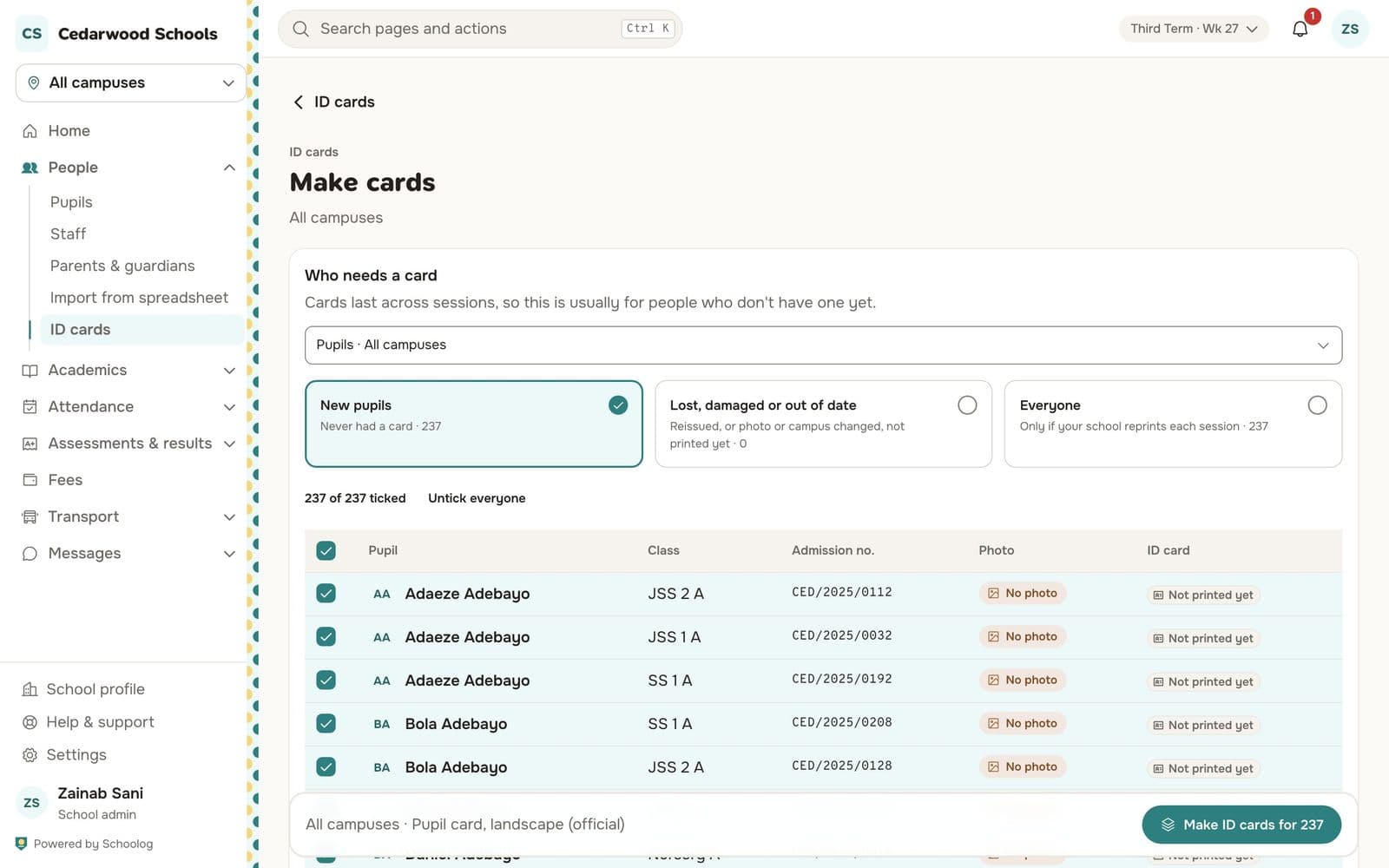
The cards are made as a PDF to print. Pupils with no photo are flagged; add their photo first.
A lost card
Open the person's record, go to ID card and stop the card, with the reason. Print a new one: it gets a new version, and the gate refuses the old card, showing why.
Parents can see their child's card in the app and save a copy.