Record a payment
Record cash, a bank deposit or a POS payment on an invoice, and issue the receipt.
Updated
- Open the invoice from Fees, Invoices, or search for the pupil.
- Press Record a payment.
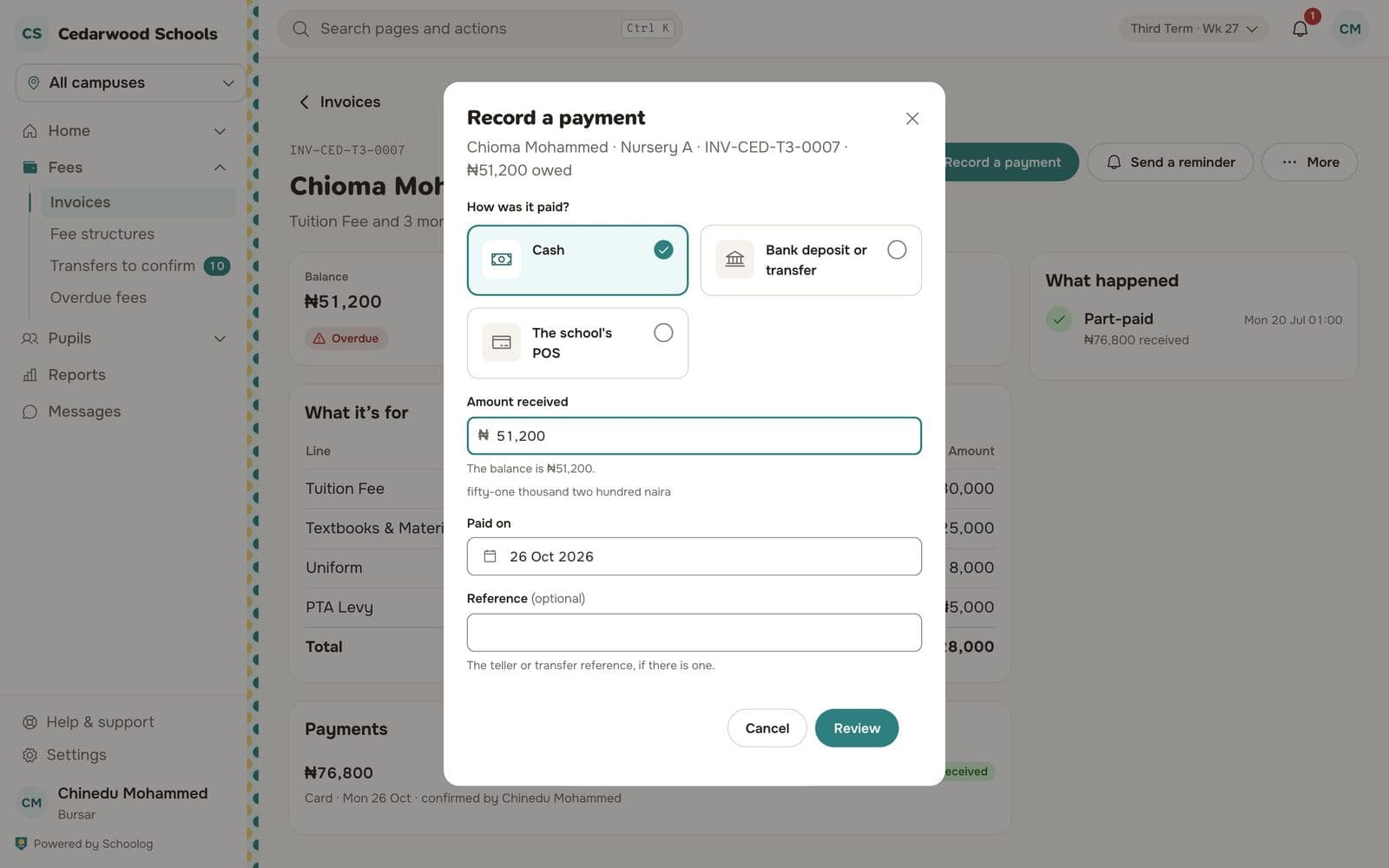
- Under How was it paid, choose Cash, Bank deposit or transfer, or The school's POS.
- Type the amount received. The balance is shown under it.
- Set the day it was paid on.
- Type the teller or transfer reference, if there is one.
- Press Review, check the summary, then press Record with the amount.
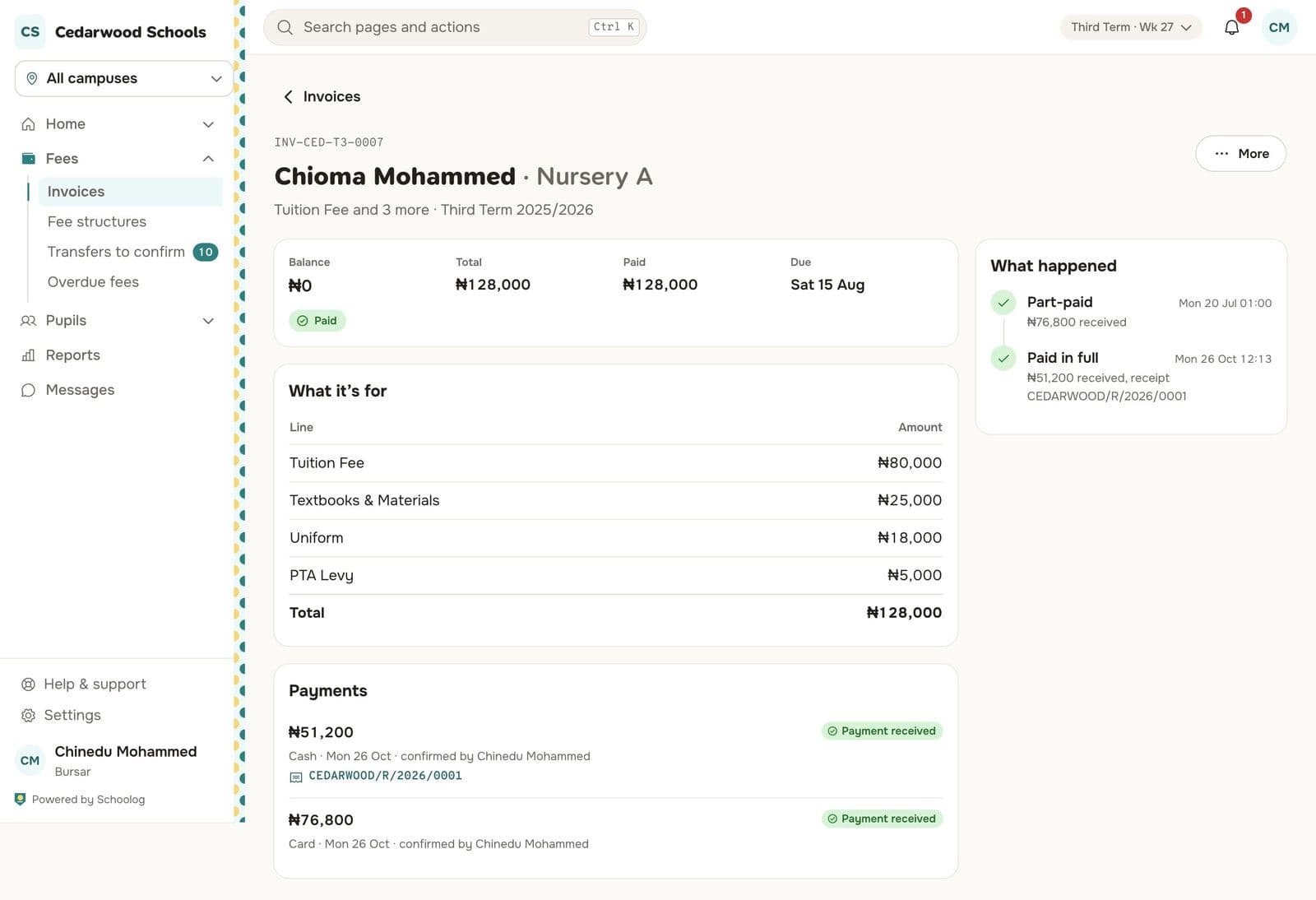
The family is sent a receipt in the app, and the invoice shows the payment with its receipt number.
If it doesn't save
- More than the balance: you can't record more than is owed. Check the amount.
- The balance changed: someone else recorded a payment while you had the form open. You're shown the new balance.
- Nothing is owed: the invoice is already paid or withdrawn.
Mistakes
A receipt can be voided, with a reason, but not deleted. Open the payment and void it, then record the right one.