Send an announcement
Send a notice to parents, staff or pupils: the whole school, a campus, a stage or a class.
Updated
Go to Messages, Announcements.
- Under Send to, choose parents, staff, pupils, or more than one.
- Choose which part of the school: the whole school, a campus, a stage or a class.
- Type the title (up to 60 characters) and the message (up to 1,000). Plain text; the school's crest and name are added for you.
- Check Who it reaches: how many people, and how many get it in the app and by email.
- Send it, or save it as a draft.
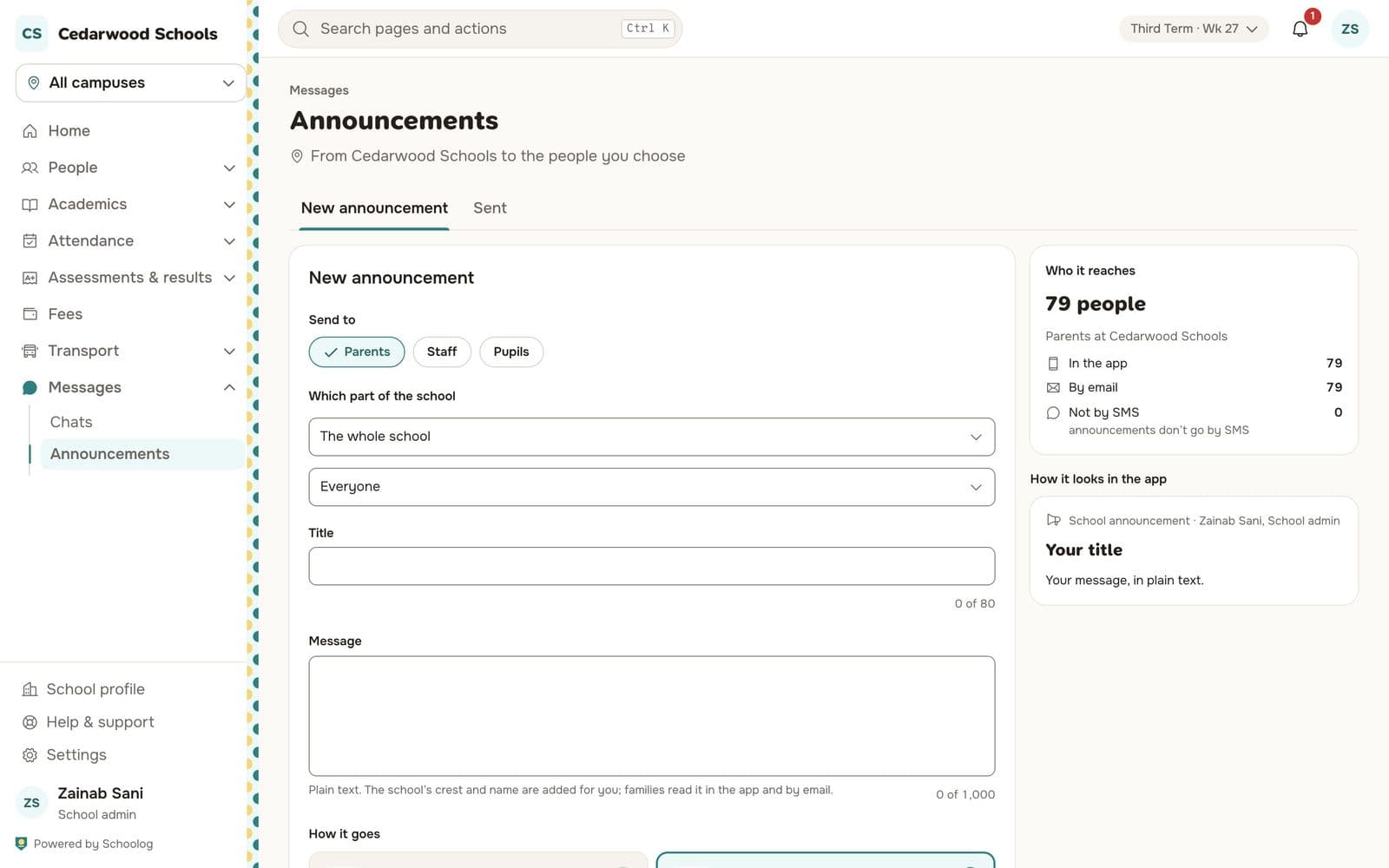
Families read announcements in the app and by email. They are not sent by SMS. People who have left the school aren't sent them.
Sent lists past announcements.
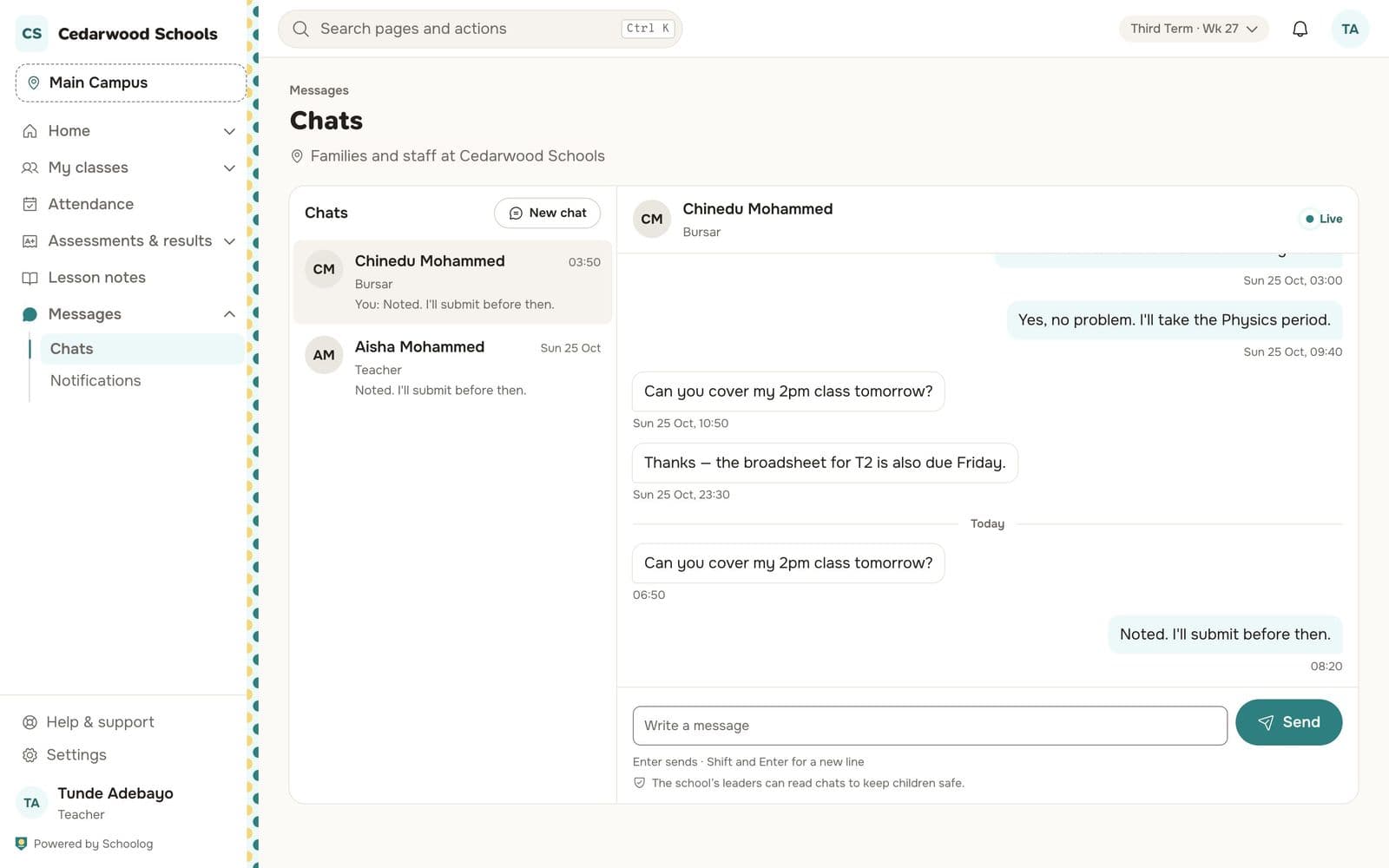
Chats
For one-to-one messages, use Messages, Chats. Press New chat and choose the person. The school's leaders can read chats with families, to keep children safe, and the chat screen says so.