Approve and publish report cards
For the office: read the cards, approve each class, and publish to families.
Updated
Go to Assessments & results, Report cards. Each class shows how many cards are prepared, submitted, approved and published.
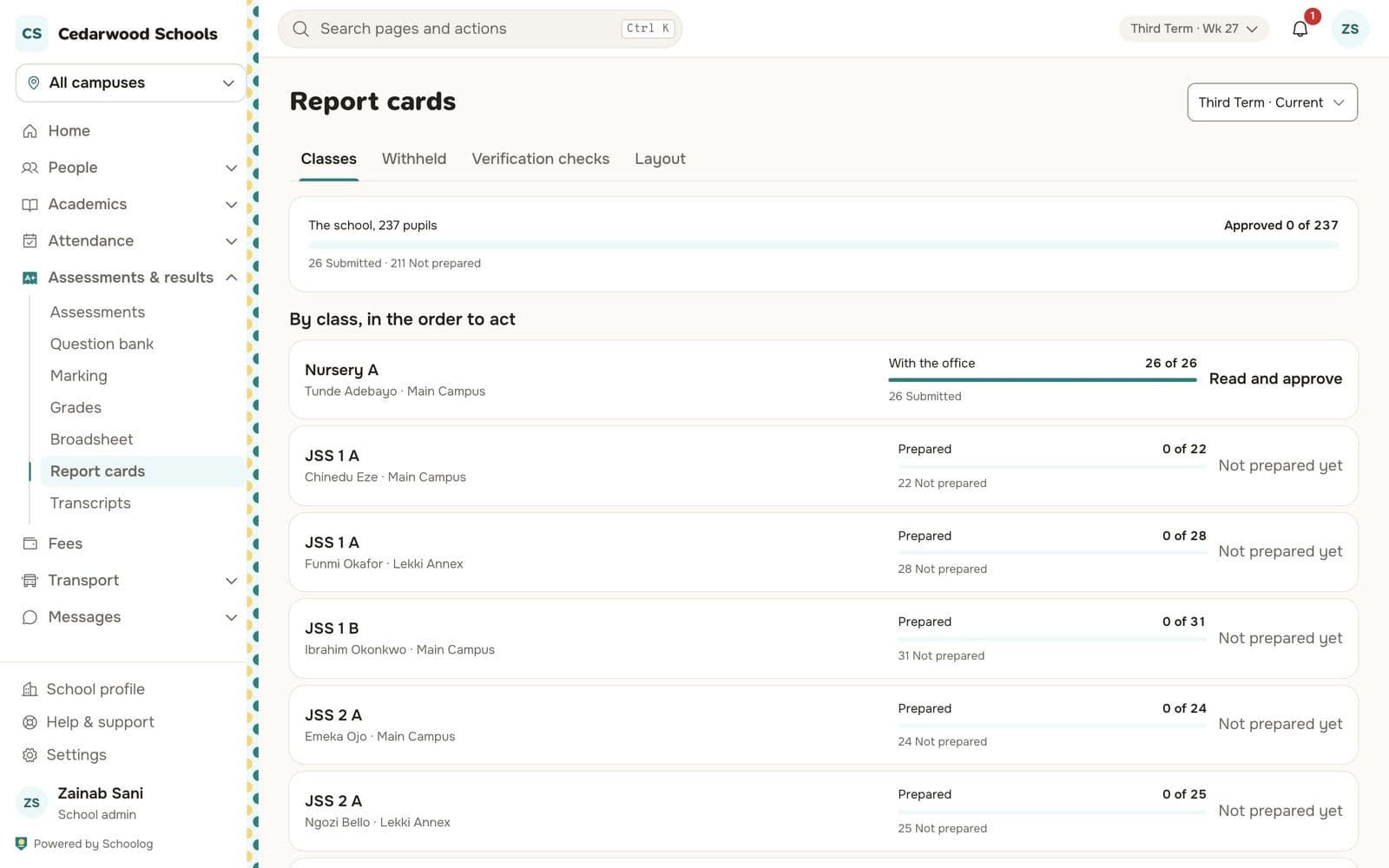
Approve
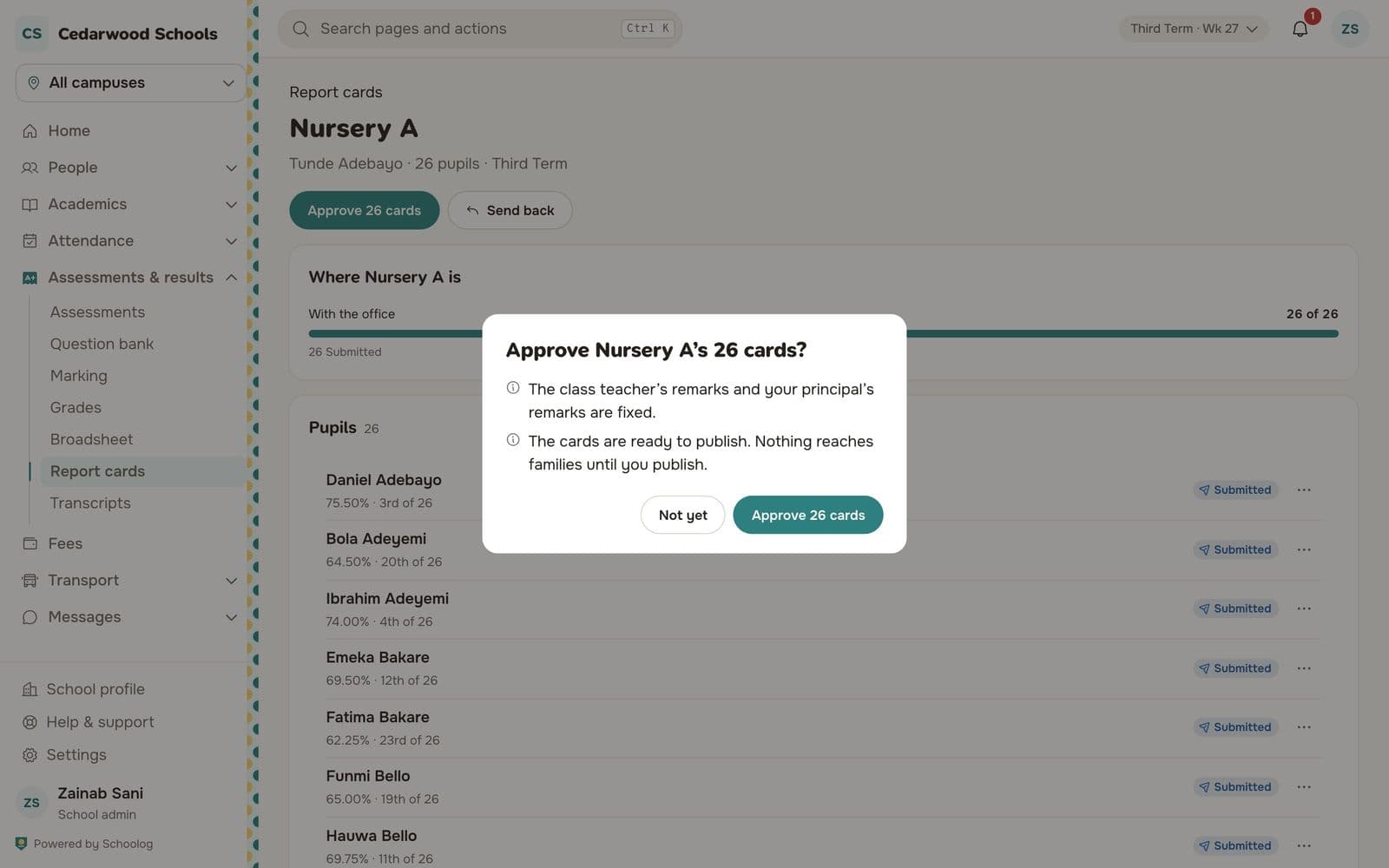
- Open a class. Submitted cards are listed.
- Read any card. To send one back, press Send back and say what to change.
- Press Approve with the number of submitted cards, for example Approve 26 cards.
Publish
Press Publish with the number of approved cards. Schoolog makes each card's PDF and tells each family their child's card is ready. The page shows the PDFs as they are made.
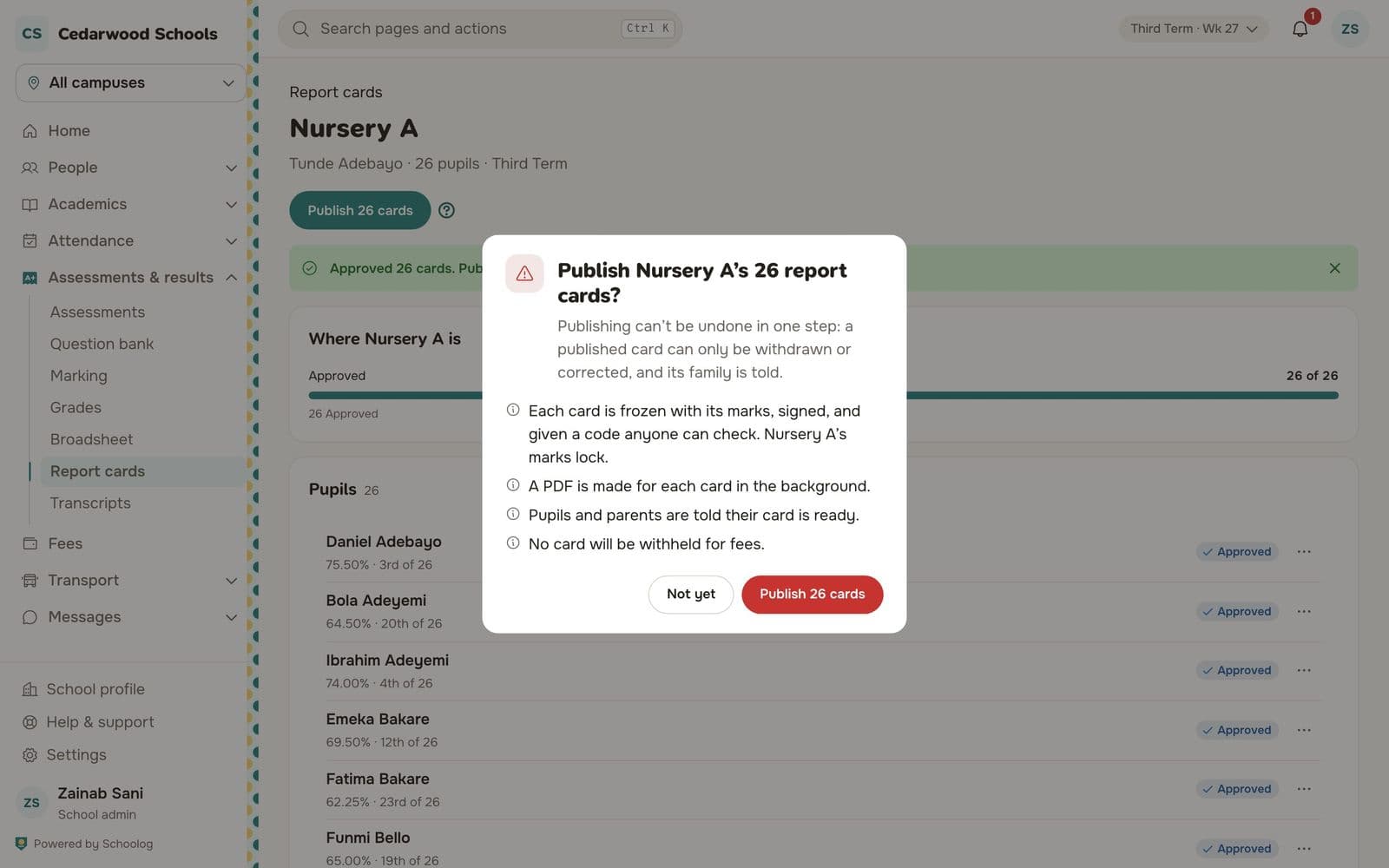
Once published, a card is frozen. Nothing on it changes.
Correcting a published card
Open the card and press Correct or withdraw.
- Correct the card: a new draft opens with the same remarks. Fix it, then approve and publish it again; the office can do that at once. The new card is a new version, and the old one stays in the record as replaced. Its verification code says so.
- Withdraw the card: take it down with a reason, for example if it was published for the wrong pupil.
Held for fees
If your school holds cards for unpaid fees, see Report cards held for fees.