Enrol a pupil
Add one pupil in five steps: details, class, guardians, photo and review.
Updated
Use this for one pupil at a time. For a whole class, use Import from a spreadsheet.
- Go to People, Pupils and press Enrol a pupil.
- Details: first name, other names and surname as on the birth certificate, date of birth, sex, previous school and any allergies or health notes. Teachers of the pupil's classes can read the health notes.
- Class: campus, class and admission number. Schoolog suggests the next admission number.
- Guardians: find a guardian already at the school, or add a new one with their phone number and email. Add as many as the pupil has, and say who they are to the pupil.
- Photo: add a photo for the ID card, or skip it and add one later.
- Review: check everything, then enrol the pupil.
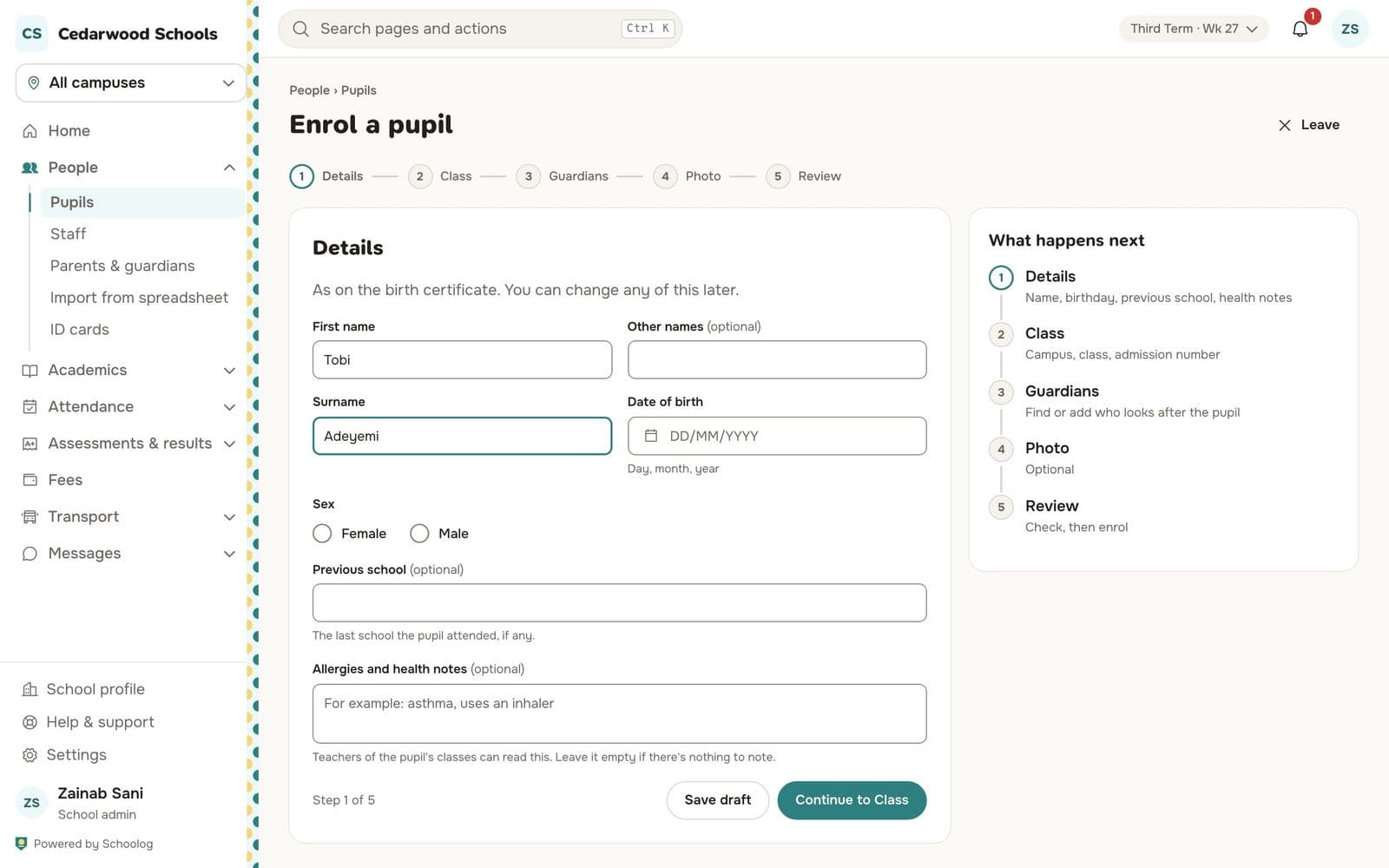
Press Save draft at any step to finish later.
After enrolment, the pupil has a sign-in for their school's page, and each new guardian gets an invite to the parent app.
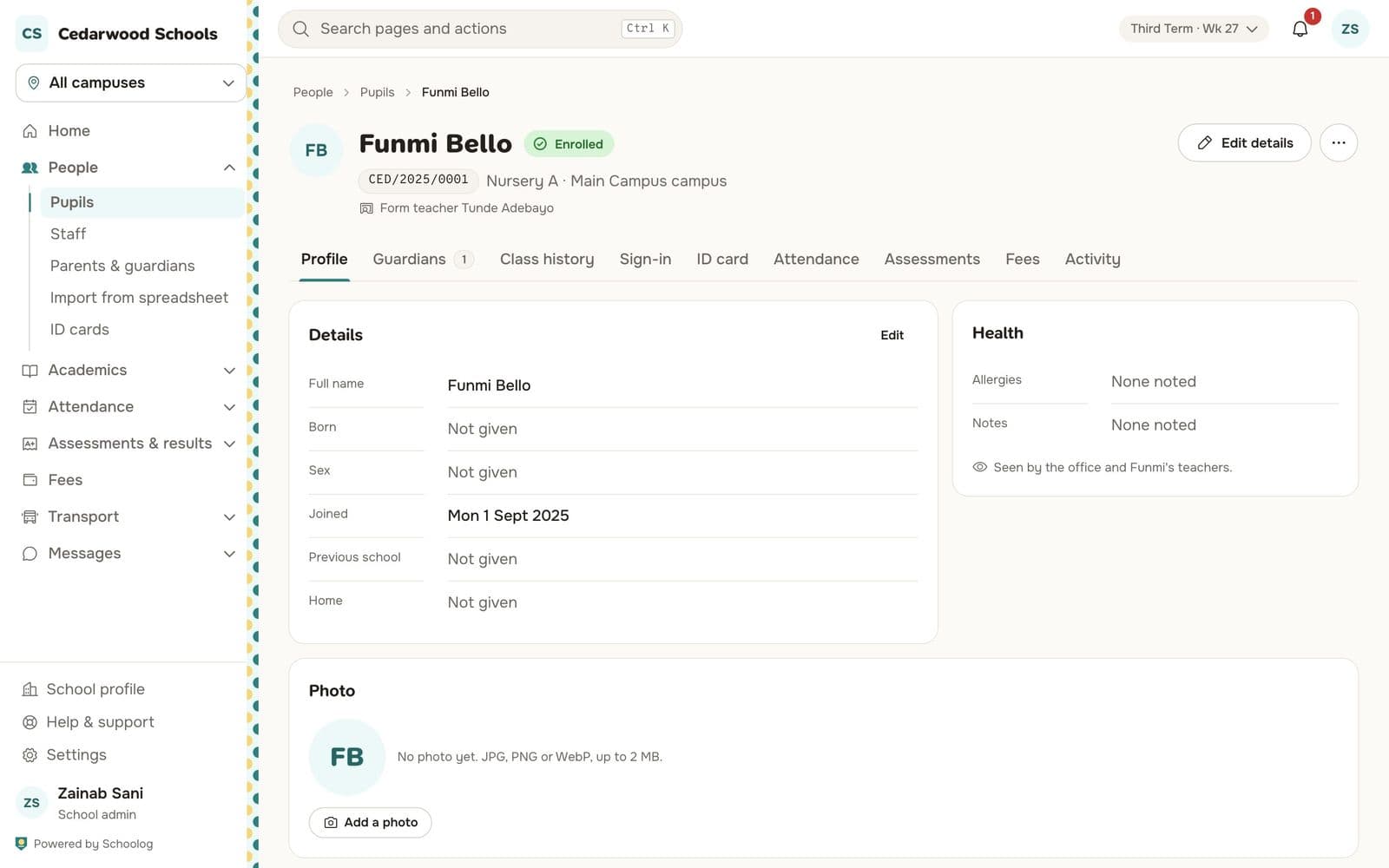
The pupil's record
Open any pupil from People, Pupils. Their record has tabs for profile, guardians, class history, sign-in, ID card, attendance, assessments, fees and activity.