Invite your staff
Add teachers, the bursar, drivers and office staff, and send each one an invite to set their password.
Updated
Add each member of staff once. They get an invite and choose their own password.
Add a member of staff
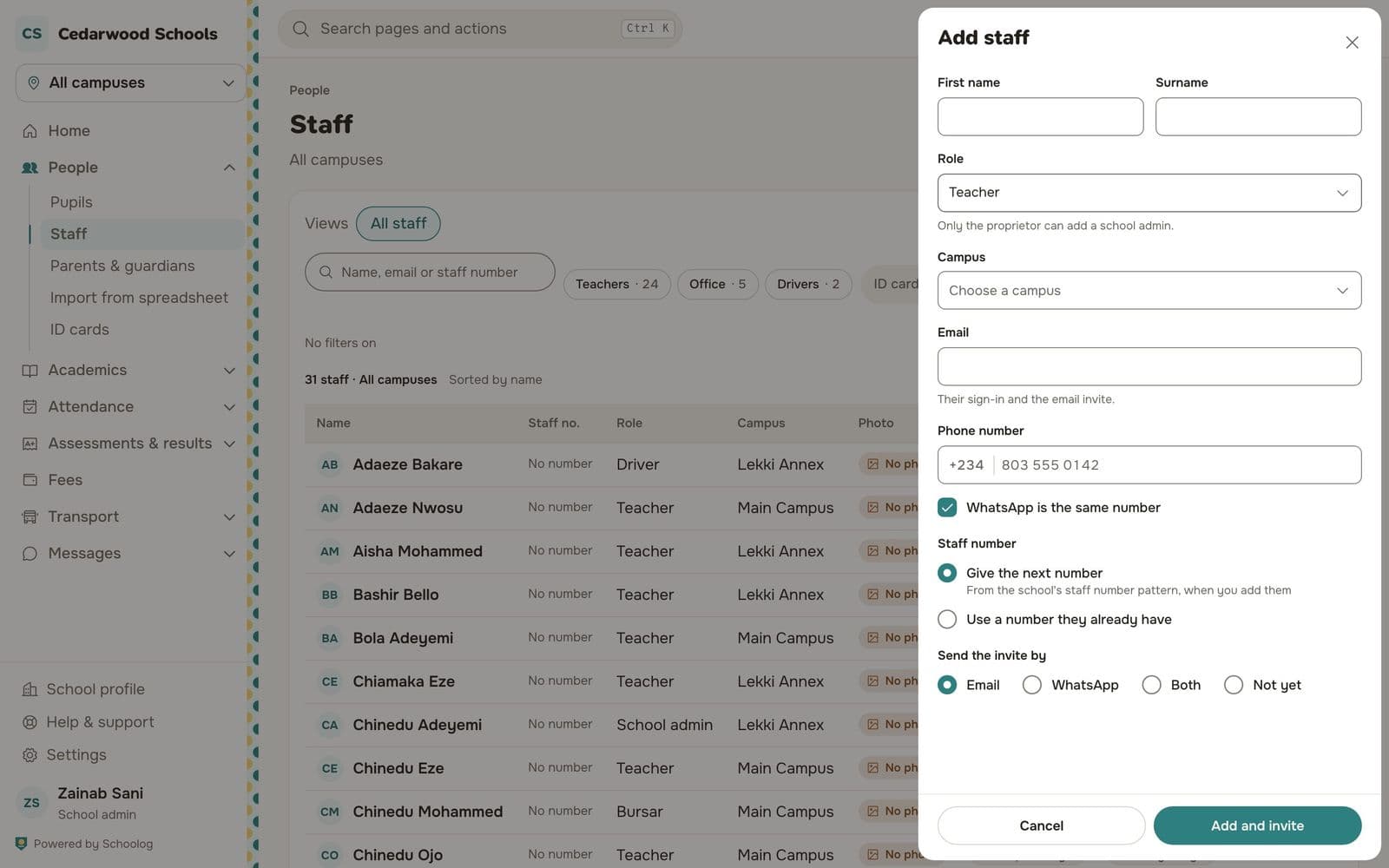
- Go to People, Staff and press Add staff.
- Type their first name and surname.
- Choose their role: teacher, bursar, driver, school admin and so on. Only the proprietor can add a school admin.
- Choose their campus.
- Type their email and phone number. Tick WhatsApp is the same number if it is.
- Under Staff number, choose Give the next number or Use a number they already have.
- Under Send the invite by, choose Email, WhatsApp, Both, or Not yet.
- Press Add and invite.
The invite link lets them set a password and sign in. If they lose it, open their record and send the invite again.
Many staff at once
To add a whole staff list, use Import from a spreadsheet and choose Staff.
What each person sees
What a teacher sees depends on who teaches what: their form class and the subjects they teach. Make sure each teacher has their classes before they start taking registers.