Import pupils and staff from a spreadsheet
Bring a whole school in from Excel or CSV. Every row is checked before anything is saved.
Updated
Before you start
Your file can be Excel or CSV, up to 5 MB and 5,000 rows. One row per pupil (with their guardians on the same row) or one row per member of staff.
If you are starting a fresh list, press Download the template and fill it in.
Import
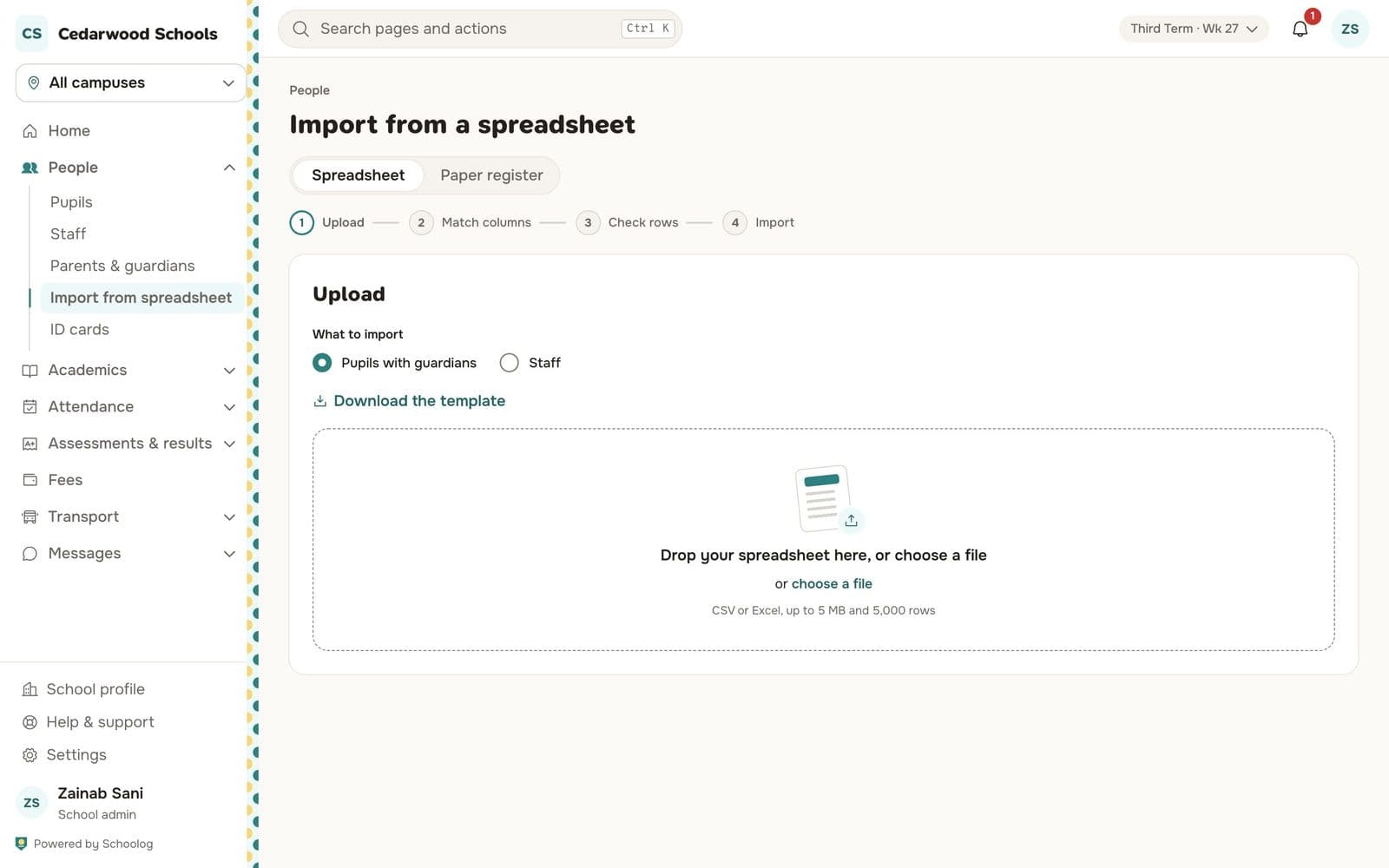
- Go to People, Import from a spreadsheet.
- Under What to import, choose Pupils with guardians or Staff.
- Drop your file on the page, or press choose a file.
- Match columns. Tell Schoolog which of your columns is the first name, the class, the guardian's phone, and so on. Columns you don't need can be left out.
- Check rows. Schoolog checks every row and shows which are ready and which have a problem, and what it is: a class that doesn't exist, a phone number in the wrong format, a repeated admission number.
- Fix the problems in your file and upload it again, or leave those rows out.
- Press Import.
The import runs in the background. You can leave the page; you will be told when it is done. Only one import runs at a time per school.
After a pupil import
Each pupil gets a sign-in. The sign-in slips for the class can be downloaded once by the person who ran the import, for 24 hours. Print them and hand them out.
Paper registers
If your class lists are only on paper, use the Paper register tab. Choose the class and type the pupils in, one row each. You can paste rows from a spreadsheet too.