Move into the next session
Set up the next session, then promote every pupil into it at the end of Third Term.
Updated
There are two parts: setting up the next session, then moving pupils into it.
1. Set up the next session
Go to Academics, Setup and press Set up with the next session's name.
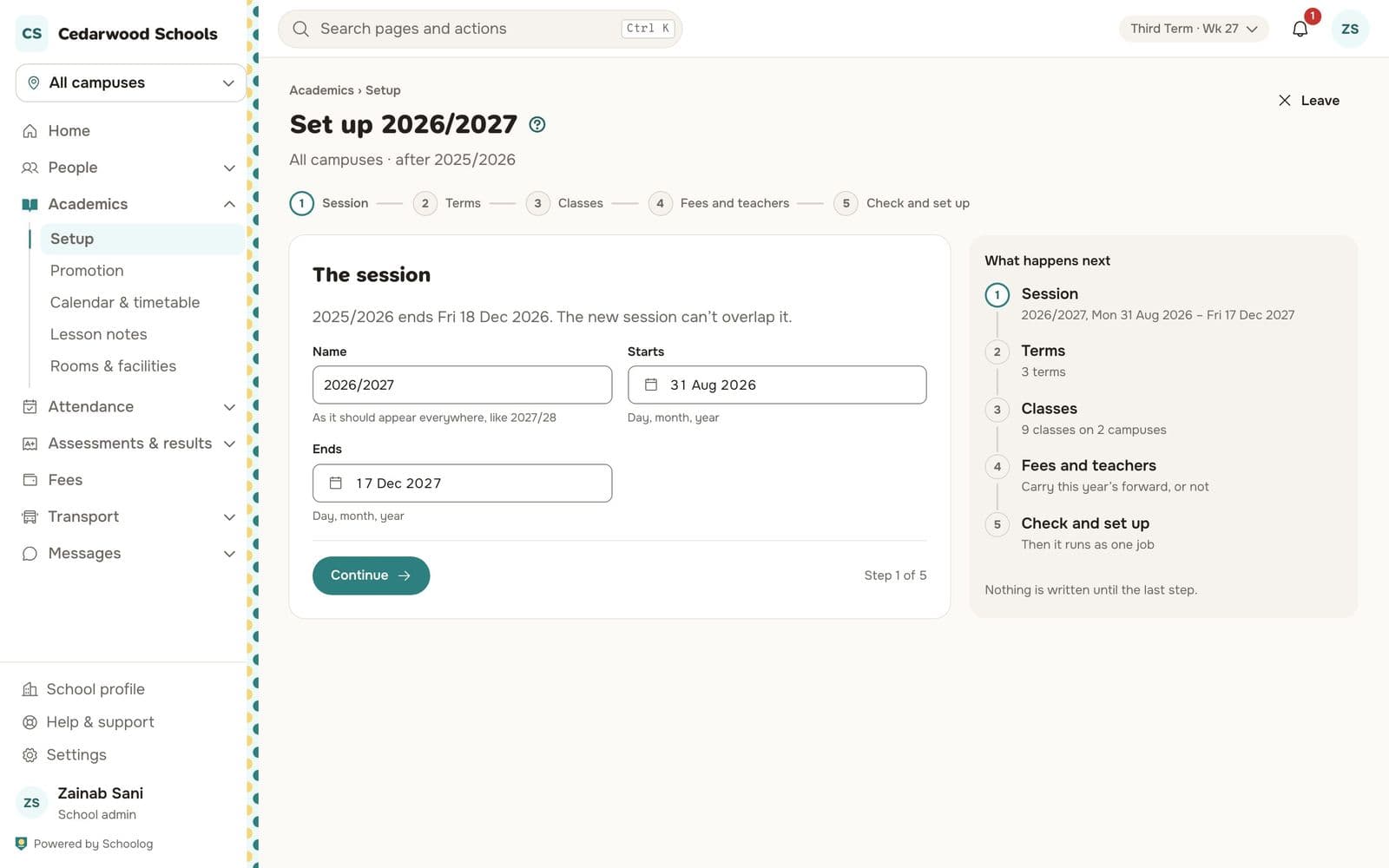
The steps are:
- Session: the name and dates. It can't overlap this one.
- Terms: the three terms' dates.
- Classes: which classes run next session, on which campus.
- Fees and teachers: carry this session's fee structures and teacher assignments forward, or not.
- Check and set up: check everything. Nothing is written until you press the last button, and then it runs as one job.
2. Promote
Go to Academics, Promotion. You can promote once the next session is set up and Third Term's report cards are published.
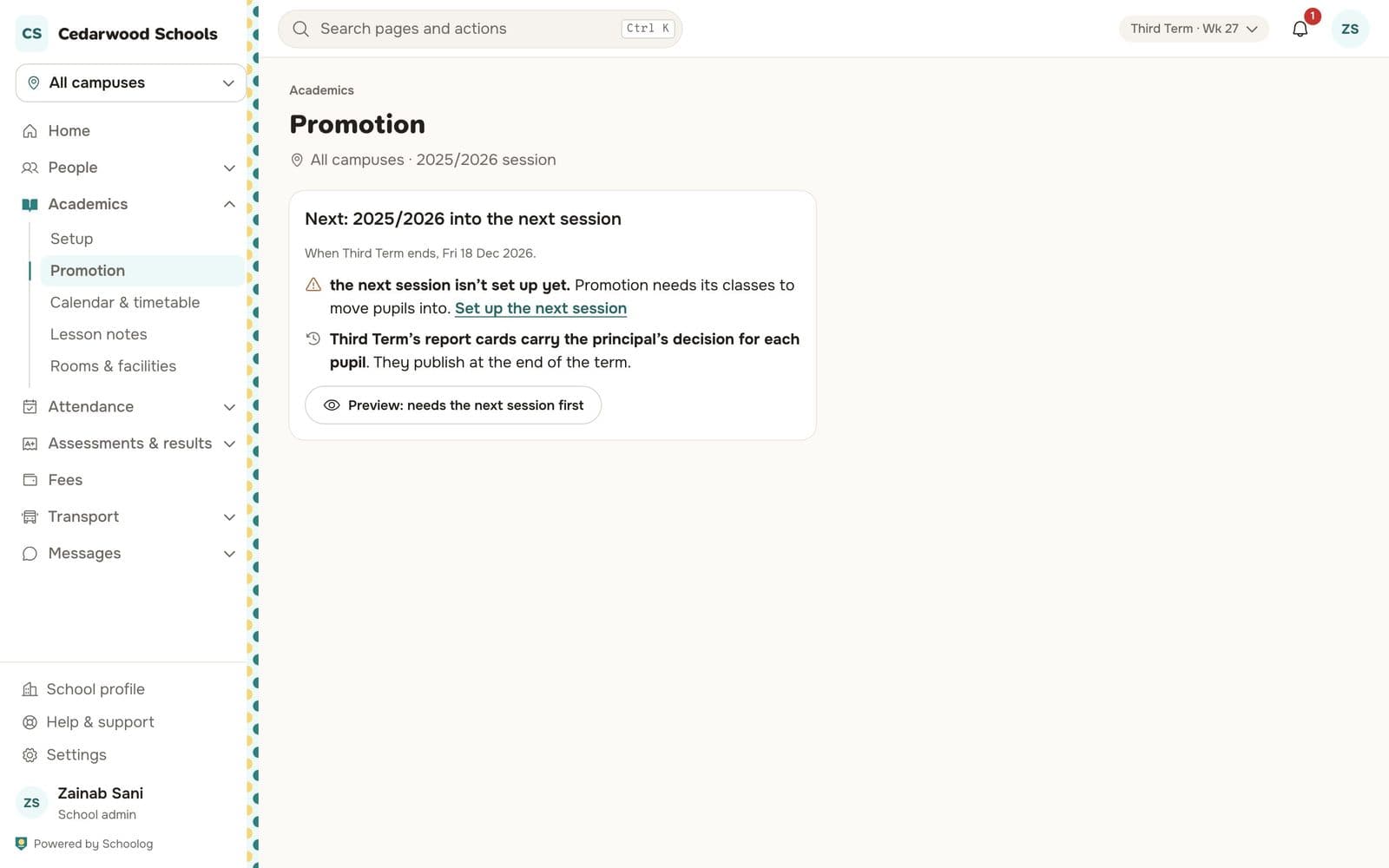
Third Term's report cards carry the principal's decision for each pupil: promoted, repeat or leaving. Press Preview to see where every pupil goes, then Promote. Only one promotion runs at a time.
After promotion, last session's classes are archived, so their registers, marks and report cards stay readable.