Turn on two-factor sign-in
Add a code from your phone to your sign-in, so a password alone can't open your account.
Updated
With two-factor sign-in, signing in needs your password and a six-digit code from an authenticator app on your phone.
- Install an authenticator app, such as Google Authenticator or Microsoft Authenticator.
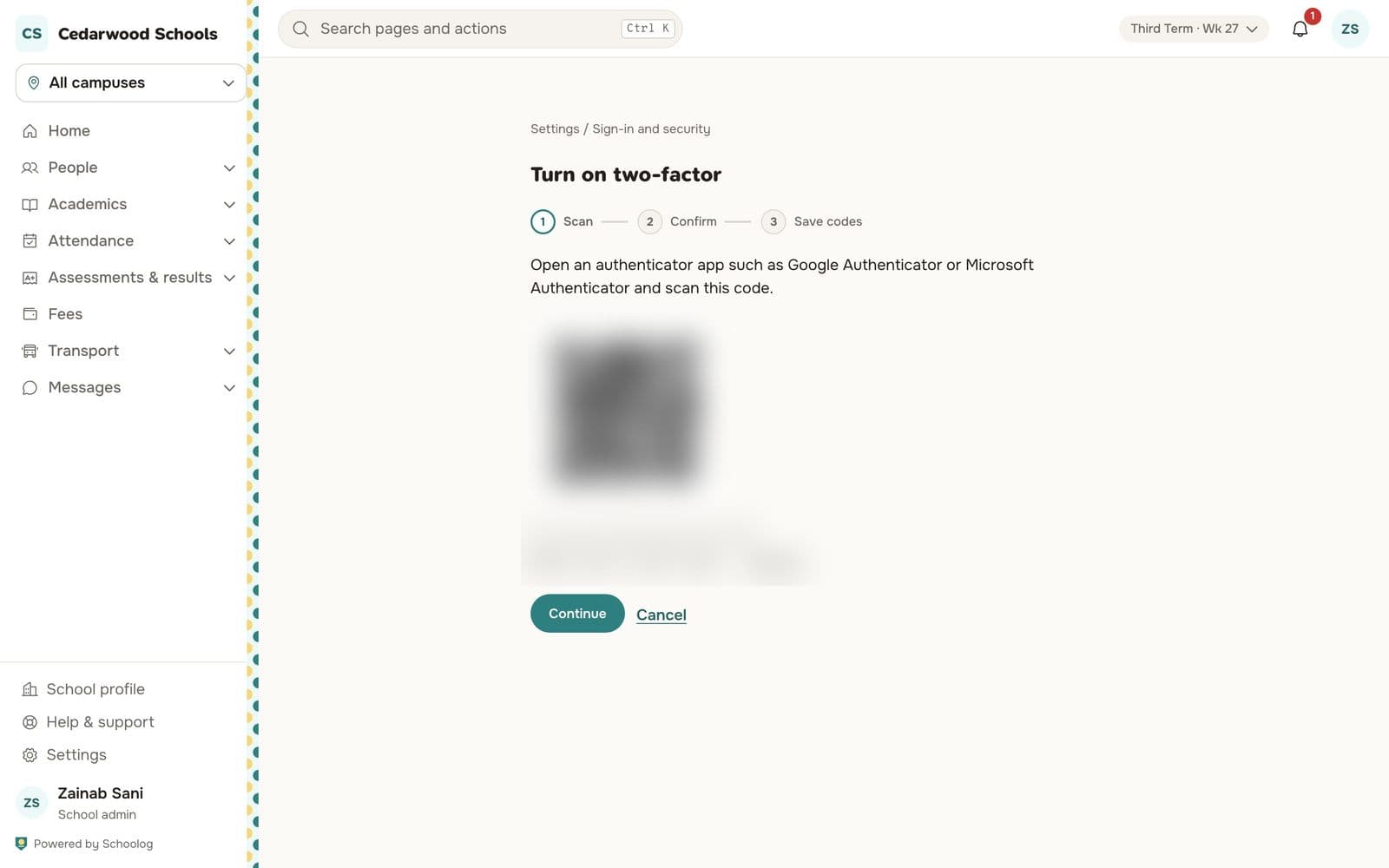
- In Schoolog, go to Settings, Sign-in and security and press Turn on two-factor.
- Scan: scan the code on screen with the app. If you can't scan, type the key into the app instead.
- Confirm: type the six-digit code the app shows.
- Save codes: save the backup codes somewhere safe. Each one works once if you lose your phone.
From now on, after your password, type the code from the app.
Lost your phone?
Use one of your backup codes to sign in, then turn two-factor off and on again with your new phone. If you have no backup codes, ask your school's proprietor or admin.